"ECG" related functions will cease to be supported in Corporate Internet Banking / Shacom Business mobile App and the local transfers will be supported officially by Faster Payment System ("FPS")
With effect from early September 20241, "ECG" related functions2 will cease to be supported and the local transfers will be supported officially by Faster Payment System ("FPS") in Corporate Internet Banking / Shacom Business mobile App. Customers can initiate instant5 fund transfer to other local banks via "FPS" 3 4 . To ensure the smooth migration, please note the supplements / reminders below:
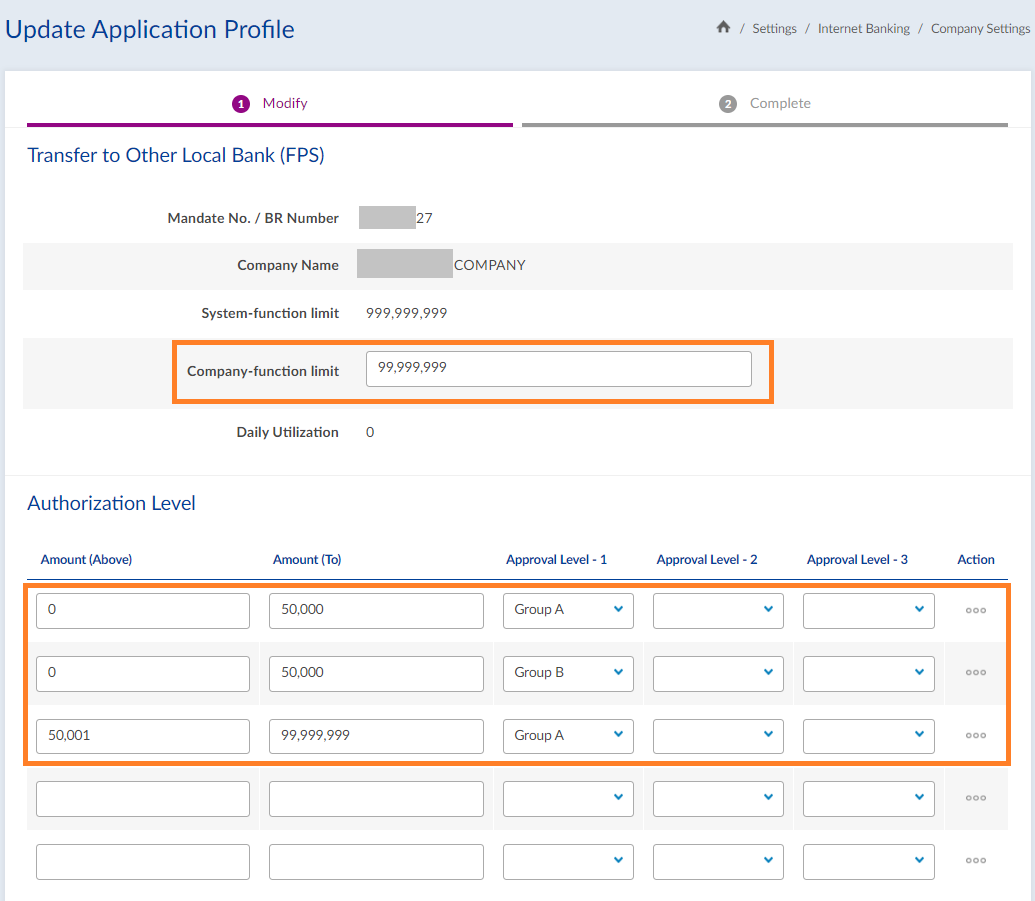
- Please set up the Company's daily authorization limit and authorization matrix for "Transfer to Other Local Bank (FPS)" function and the access rights for the user(s) and the Daily Personal Authorization Limit for Authorizer(s) .
- When conducting fund transfer via "FPS", please note that the payee name must be matched exactly with that in the payee bank's record, otherwise the payee bank may reject the transaction.
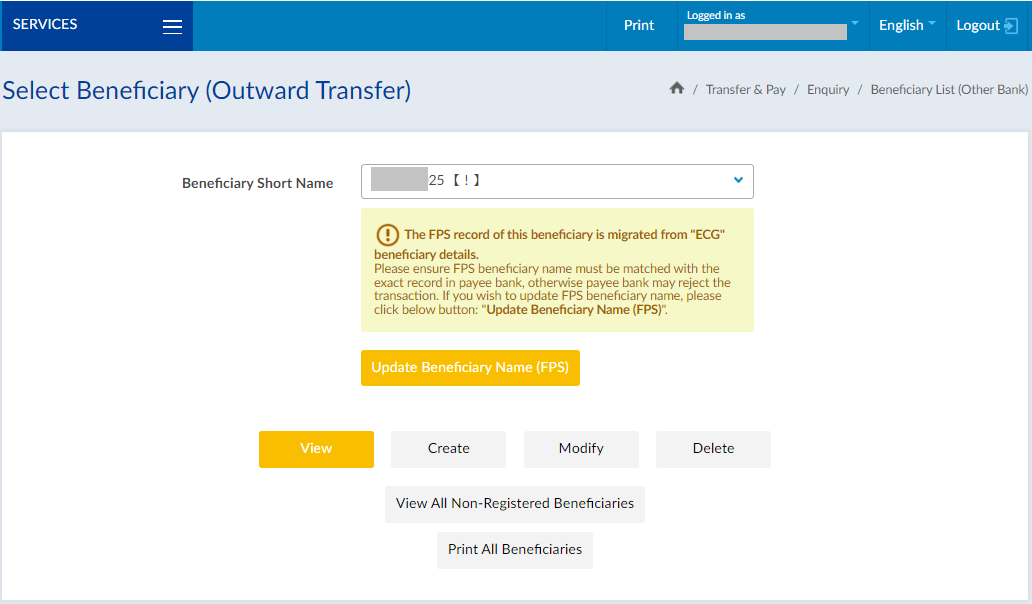
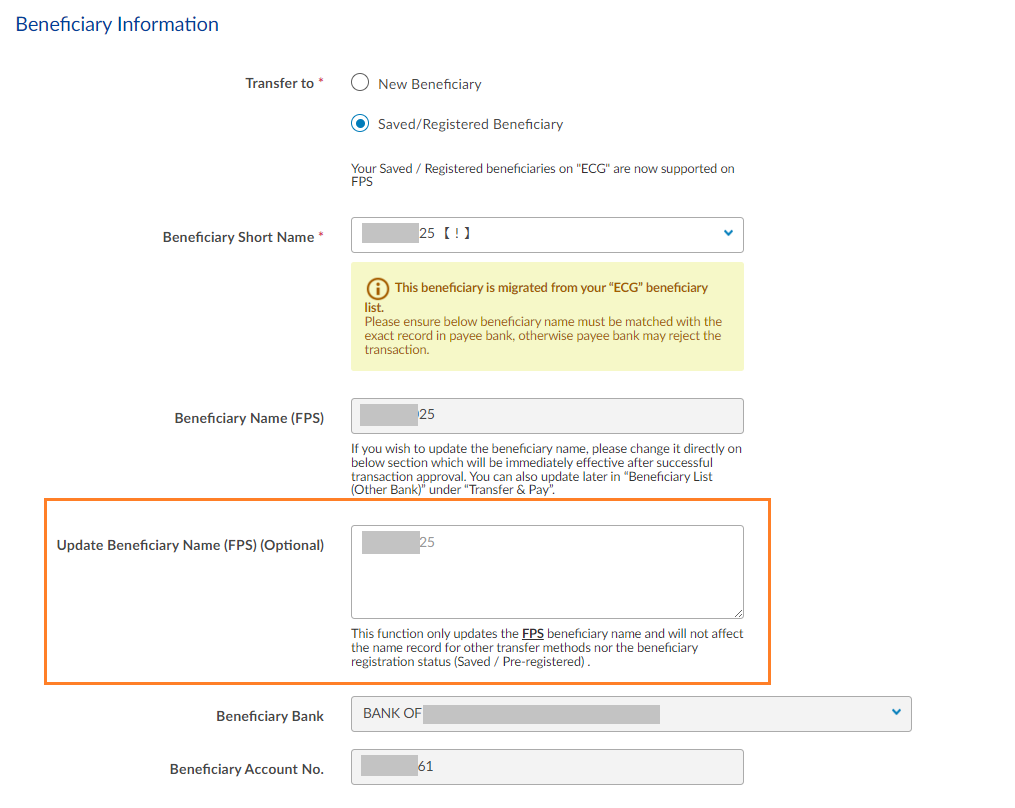
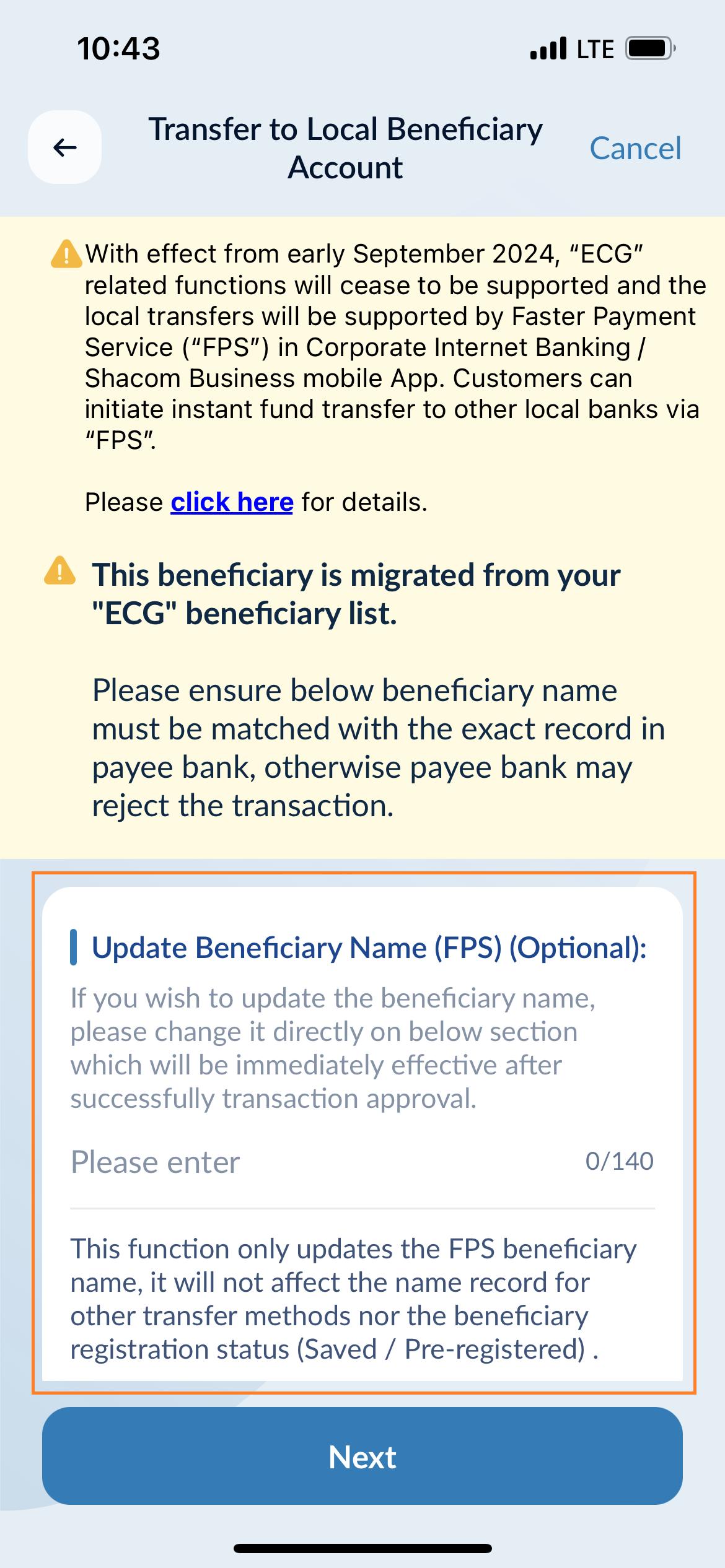
- For customer convenience, the records of Saved/Registered Beneficiary & bulk transfer template on "ECG" have been migrated to that of "FPS" previously, please double-check whether the name of the migrated Saved/Registered Beneficiary (marked with【!】) is an exact match with that in the payee bank's record. If needed, please update Beneficiary Name (FPS) via Corporate Internet Banking / Shacom Business mobile App.
- Currently, "ECG" only supports scheduled transfer ending within August 2024. Alternatively, please preset your instruction via "FPS" .
- Currently, the maximum transfer limit per transaction via "FPS" is HKD/RMB 1,000,000. If needed, you may setup the instructions via CHATS4.
- Currently, multiple approval is not applicable to "FPS". If needed, you may use "Bulk Transfer To Other Local Bank (FPS)" function to setup multiple "FPS" transactions at once and make transfer to multiple payees.
Please view the following step-by-step guidance for Corporate Internet Banking / Shacom Business mobile App:
- "For first-time using "FPS" functions, how to setup e.g. Company's daily authorization limit and authorization matrix, access rights for the user(s) and the Daily Personal Authorization Limit for Authorizer(s)?
- How to use "Transfer to Other Local Bank (FPS)" / "Bulk Transfer To Other Local Bank (FPS)" functions?
- How to update Beneficiary Name for the migrated beneficiary from "ECG" to "FPS"?
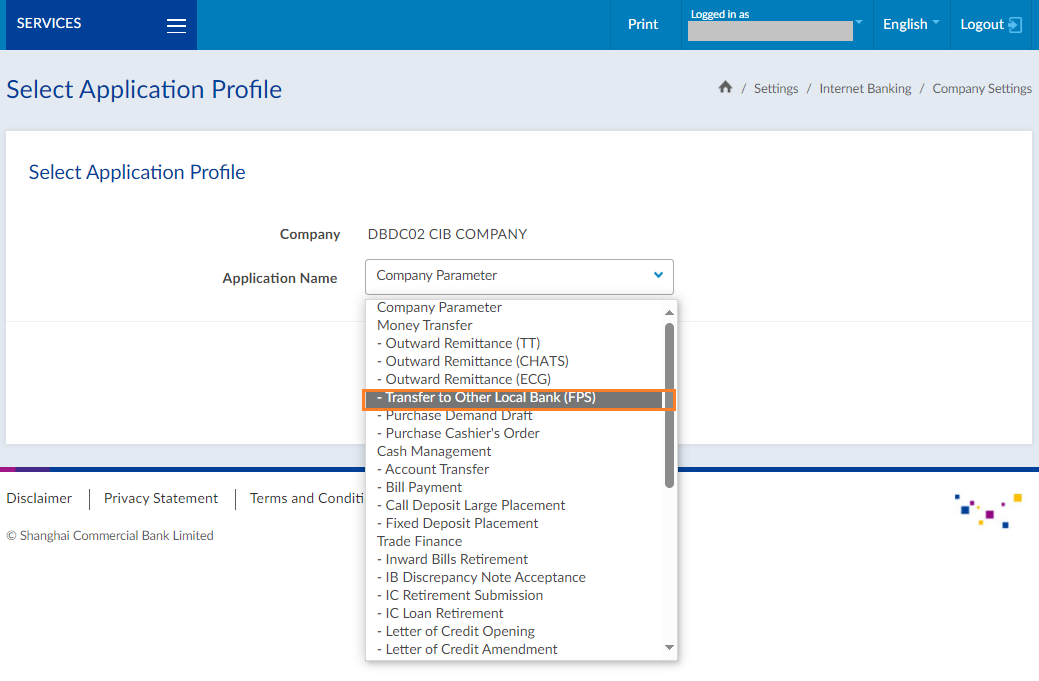
Step 1: Administrators logon to Corporate Internet Banking, select "Settings> Company Settings" from the menu, then select "Transfer to Other Local Bank (FPS)" and click "Update" to set up daily authorization limit and authorization matrix under "Company Function Limit" and "Authorization Level" respectively.
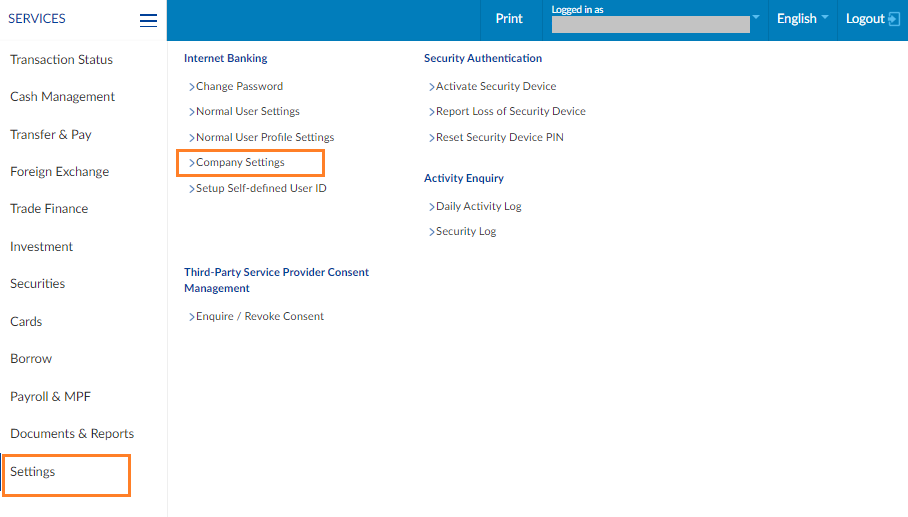
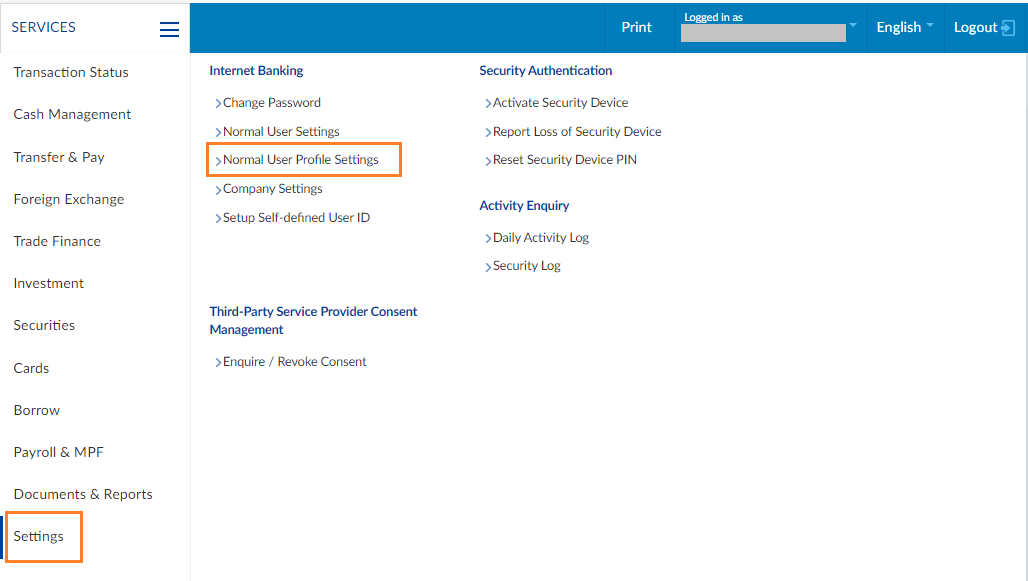
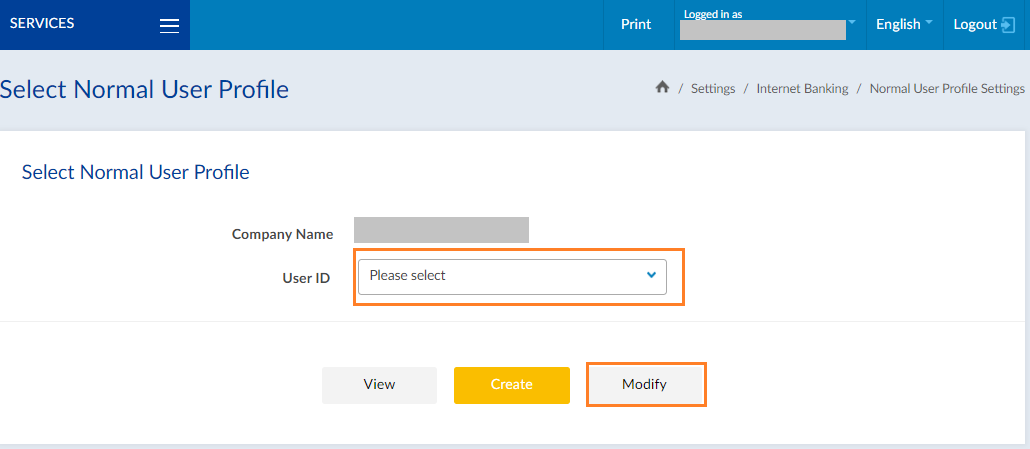
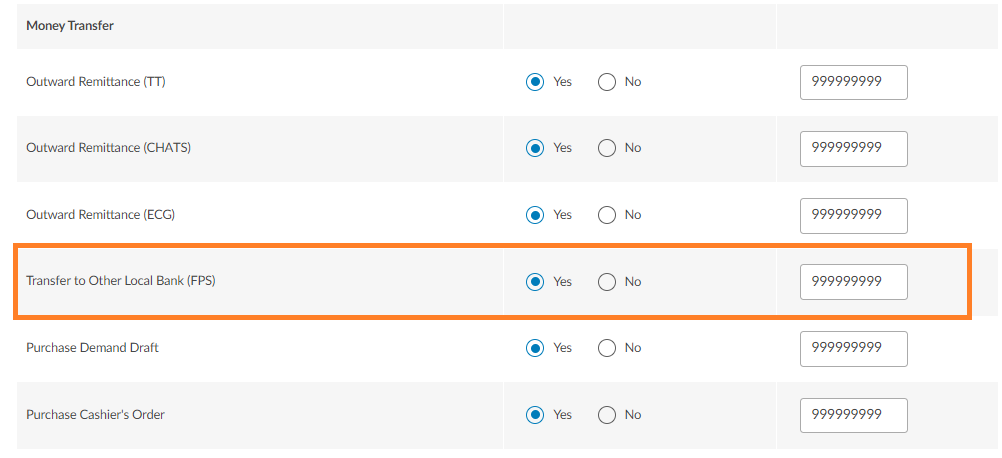
Step 2: Administrators select "Settings > Normal User Profile Settings" from the menu, then select User ID and click "Modify" to setup the access rights and authorized limit of "Transfer to Other Local Bank (FPS)" function for each user(s).
Step 1: Authorizers / Operators logon to Corporate Internet Banking / Shacom Business mobile App.
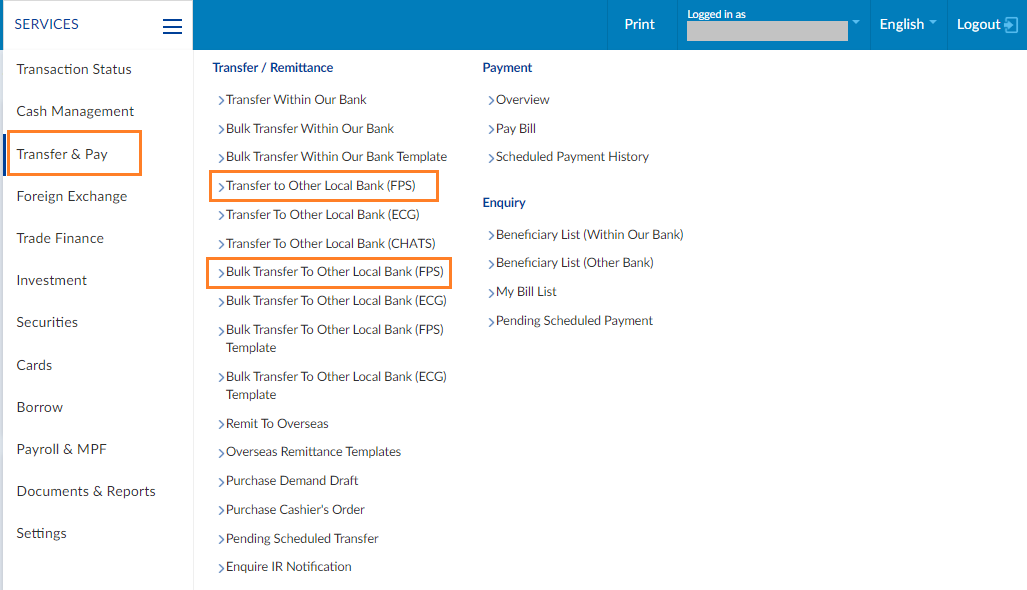
- For Corporate Internet Banking, select "Transfer & Pay > Transfer to Other Local Bank (FPS) / Bulk Transfer to Other Local Bank (FPS)" from the menu and setup the instructions.
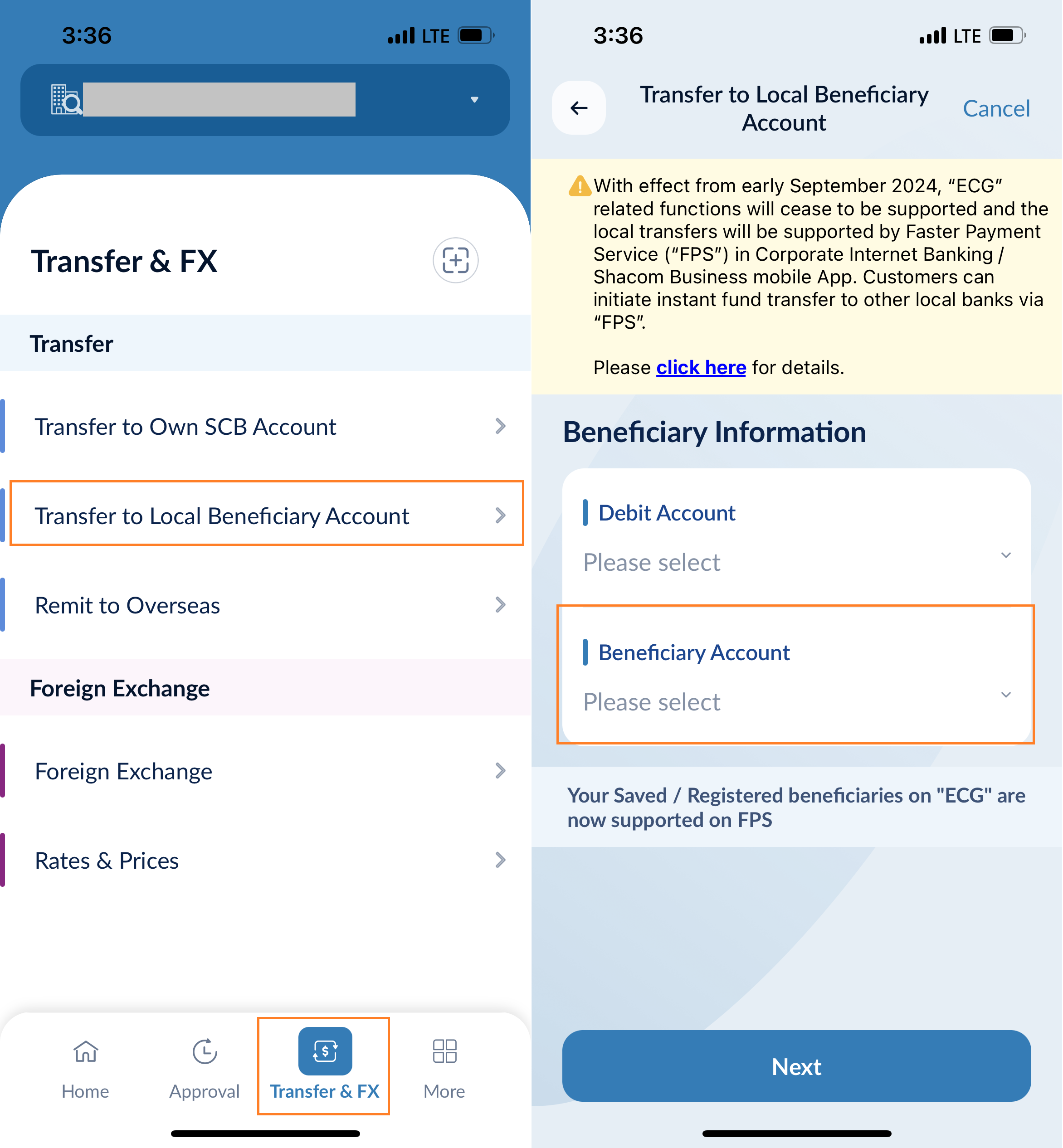
- For Shacom Business mobile App, select "Transfer & FX > Transfer to Local Beneficiary Account" from the menu and then select Saved / Registered Beneficiary (FPS) and setup the instructions.
Step 2: Authorizers logon to Corporate Internet Banking and select the transaction via "Pending Approval". Verify the transaction details (including beneficiary information) and authorize the transaction by "Mobile Security Token" or physical Security Device; Or Authorizers may logon to Shacom Business mobile App and authorize the transaction by "Mobile Security Token".
Step 3: After transaction authorization, select "Transaction Status" / "More > Approval Status" from the menu to enquire the transaction details and latest transaction status via Corporate Internet Banking / Shacom Business mobile App.
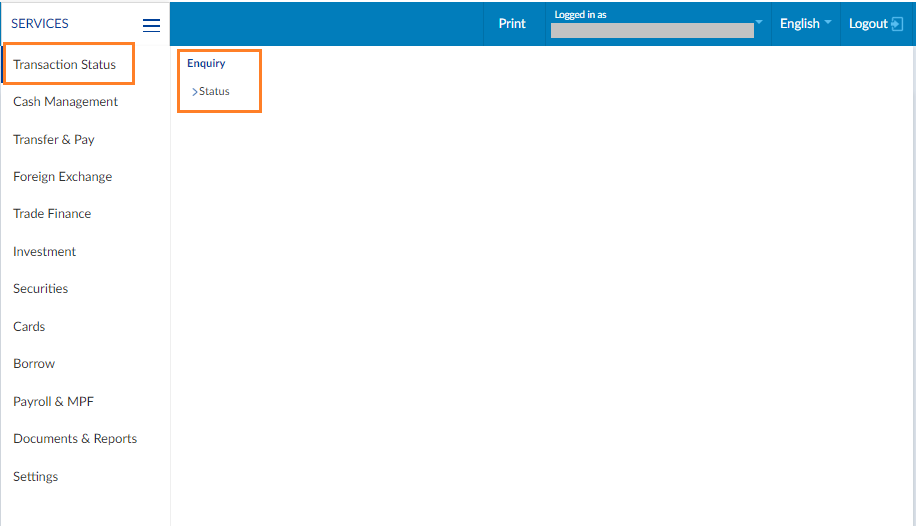
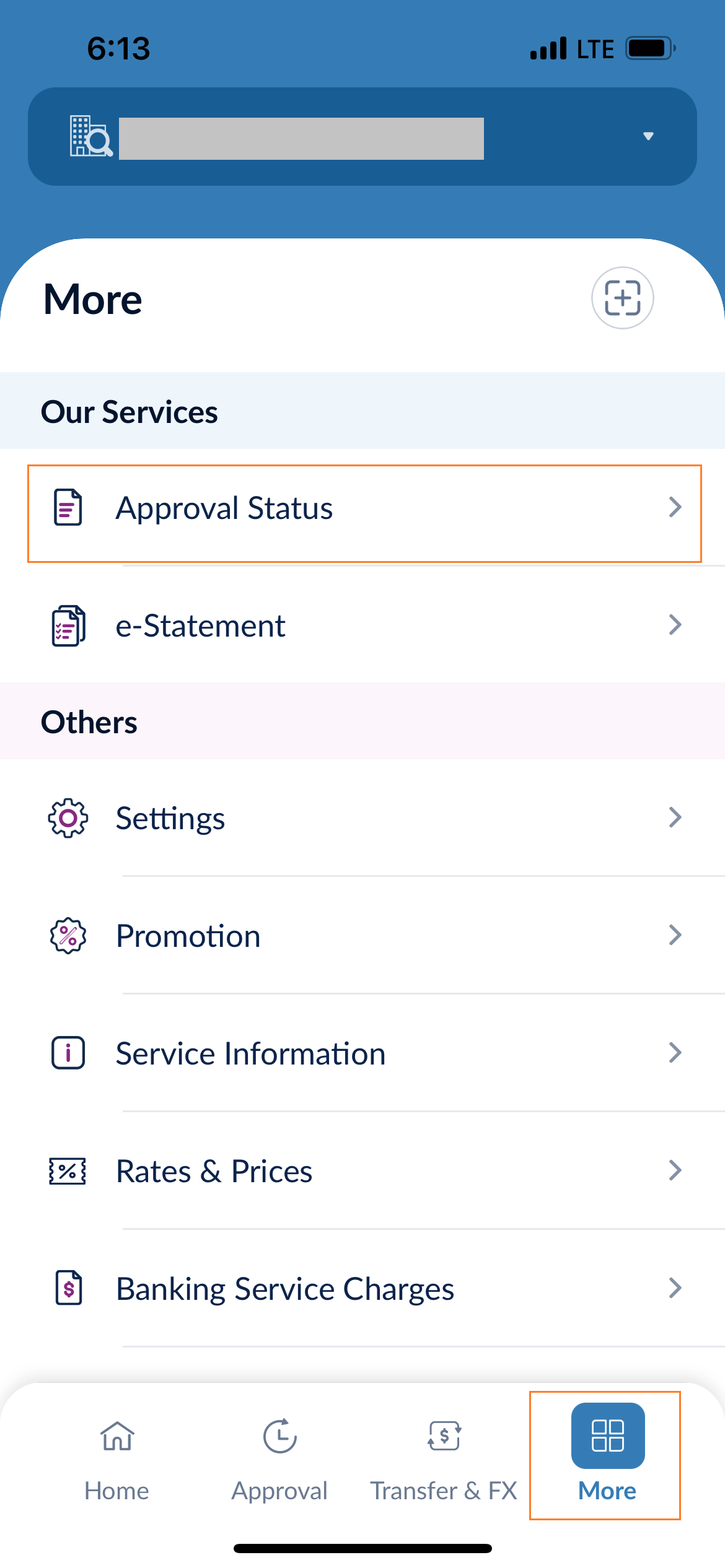
Note: "Bulk Transfer To Other Local Bank (FPS)" can only be setup via Corporate Internet Banking, but Authorizers can approve and authorize instructions via Corporate Internet Banking / Shacom Business mobile App.
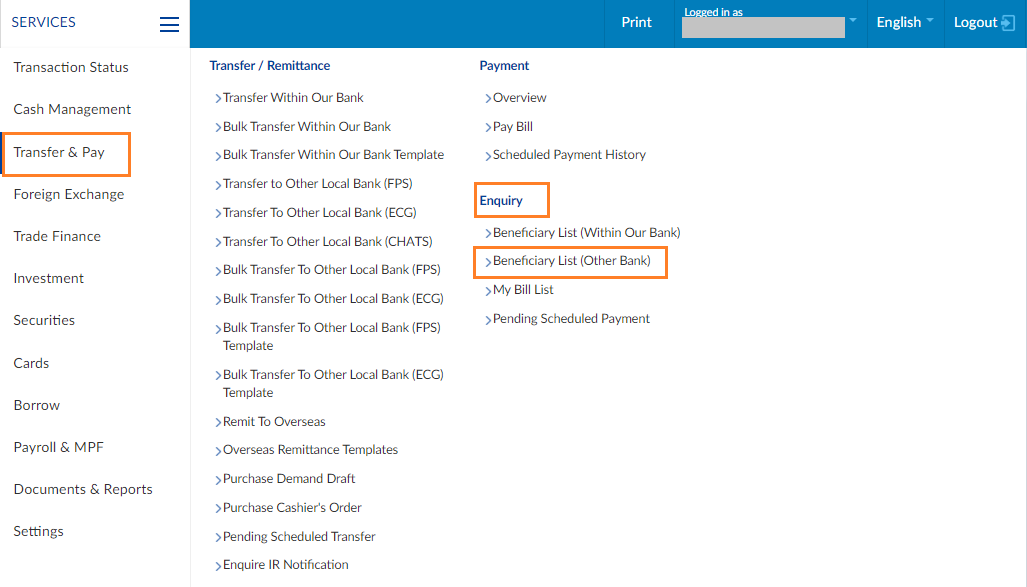
Step 1: Authorizers / Operators logon to Corporate Internet Banking, select "Transfer & Pay > Enquiry > Beneficiary List (Other Bank)" from the menu, select Beneficiary with【!】and update Beneficiary Name (FPS) according to the instructions.
Step 2: Authorizers logon to Corporate Internet Banking and authorize the transaction by "Mobile Security Token" or physical Security Device, or logon to Shacom Business mobile App and authorize the transaction by "Mobile Security Token".
Besides, customers can also update Beneficiary Name (FPS) when setting up transfer instructions via FPS through Corporate Internet Banking / Shacom Business mobile App.
Note:
- For the official implementation date, please refer to our latest announcement on our website and Corporate Internet Banking / Shacom Business mobile App.
- "ECG" related functions including "Transfer To Other Local Bank (ECG)" / "Transfer to Local Beneficiary Account" (ECG)", "Bulk Transfer To Other Local Bank (ECG)" & "Bulk Transfer To Other Local Bank (ECG) Template" that will cease to be supported in Corporate Internet Banking and Shacom Business mobile App.
- Customers can use "FPS" related functions including "Transfer to Other Local Bank (FPS)" / "Transfer to Local Beneficiary Account (FPS)", "Bulk Transfer To Other Local Bank (FPS)" & "Bulk Transfer To Other Local Bank (FPS) Template".
- For the charges for Payment or Fund Transfer to Other Local Bank via "FPS" / CHATS, please refer to "Banking Service Charges" on our website for details.
- Actual receiving time depends on the processing of receiving bank.
- At the moment, "FPS" only supports transfer through Beneficiary Name and Beneficiary Account Number, transfer through Beneficiary's mobile phone number / email / FPS Identifier (FPS ID) are not yet supported.
- The Bank will send you notification related to transaction status via SMS or email. Please ensure that your latest and valid mobile phone number and email address have been registered with the Bank.
Should you have any enquiries, please call our Customer Service Hotline on 2818 0282 or visit any of our branches.